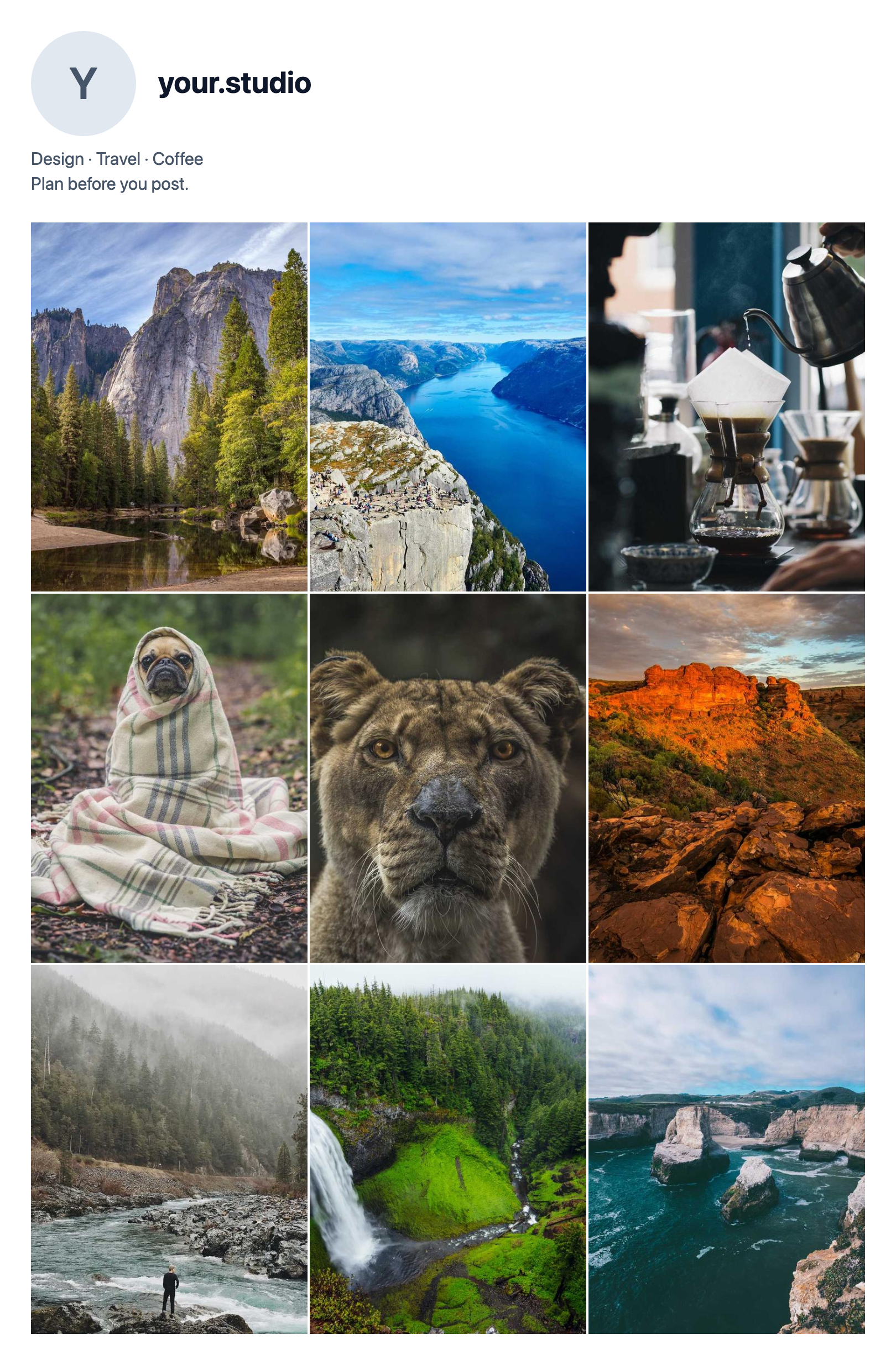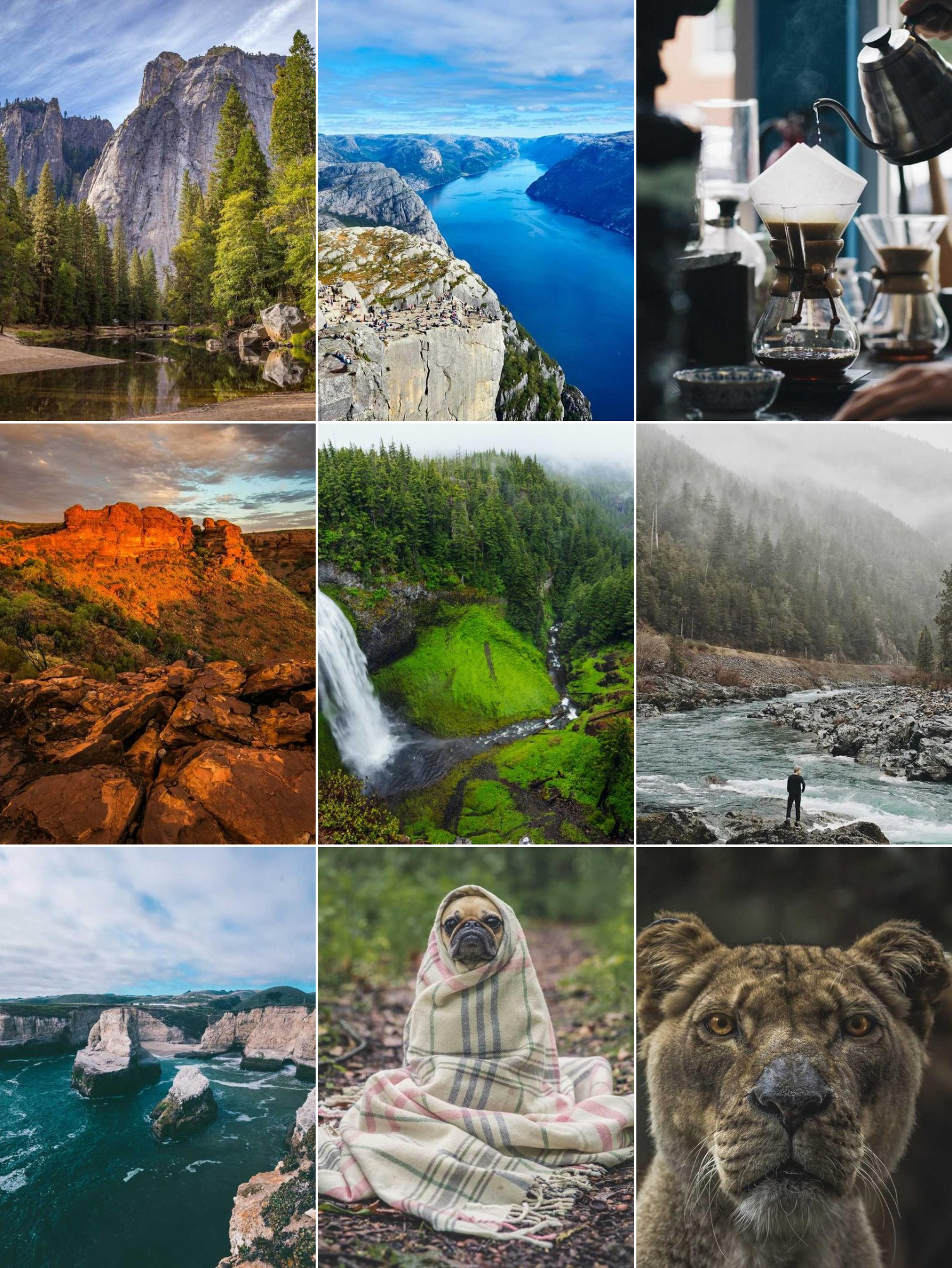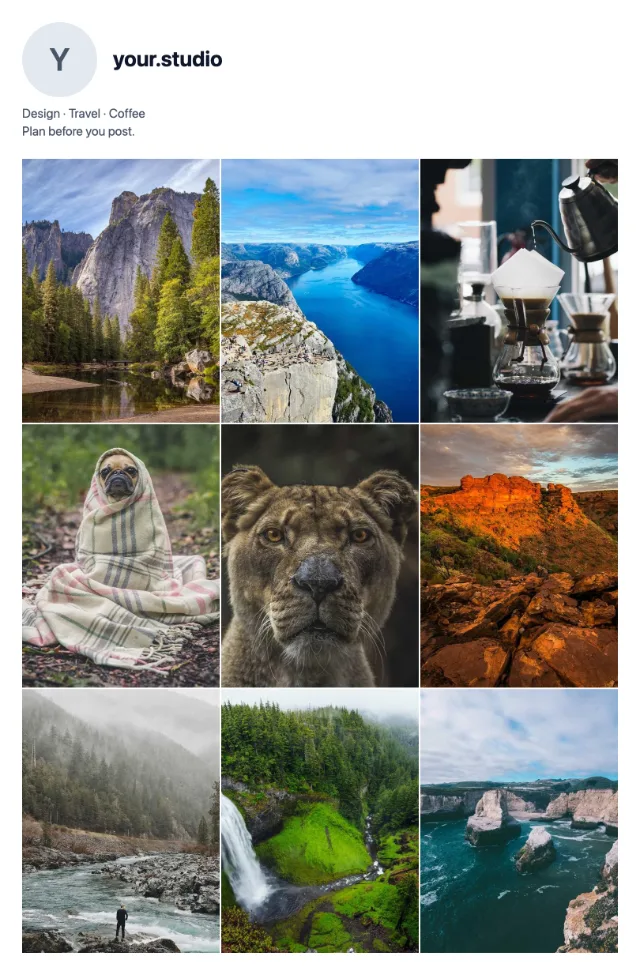
Sample profile input
Import this PNG, frame just the grid, choose three rows and match the gaps. Exclude the profile header from the cut.
Reorder planning
Try a new order from a profile screenshot, keep pinned posts in place, and export a plan before changing your account.
A complete example
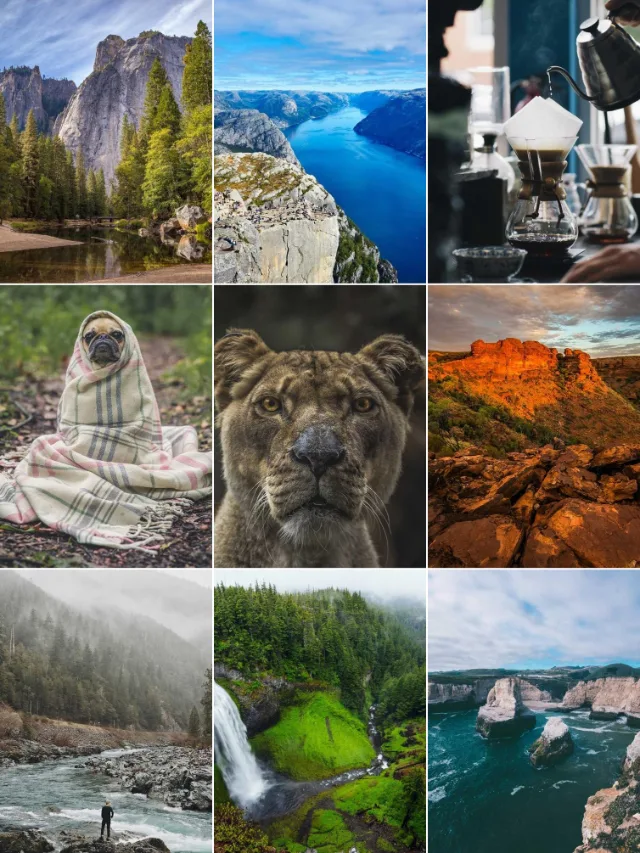
The input is cut into a three-column grid. Mountain lake, fjord and coffee form the row we keep fixed.
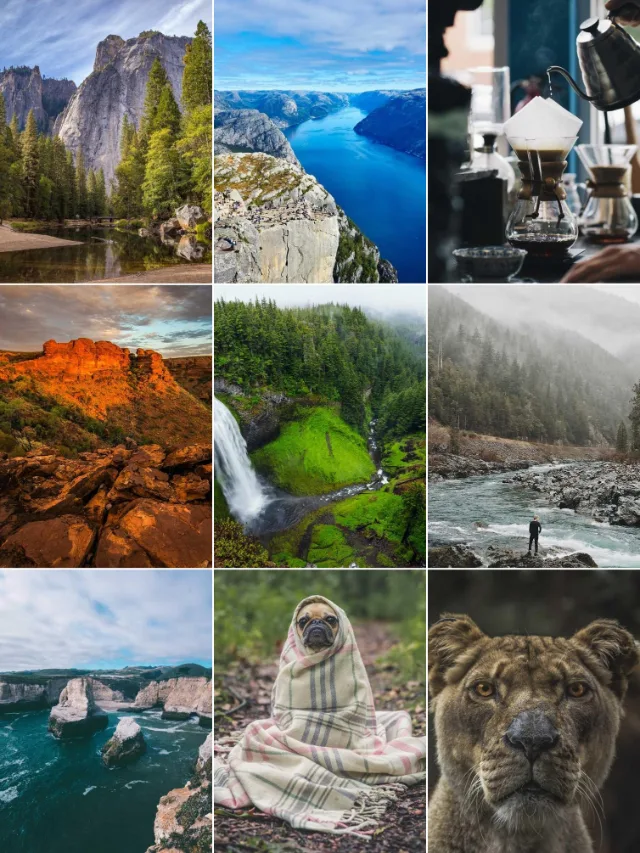
The same top row stays fixed. Desert, waterfall and river move to row two; coast, dog and lion move to row three.
Download the sample input to try the screenshot workflow yourself, or save the completed grid as a visual reference.
Import this PNG, frame just the grid, choose three rows and match the gaps. Exclude the profile header from the cut.
One PNG showing the proposed positions. Screenshot tiles are planning references, not recovered original photos.
Start with Grid Screenshot Import to frame the visible three-column grid. Set the row count and tile gap, then check that every cut falls between posts. The tiles are added as Existing references in Grid Feed Planner.
Make a second scenario to compare alternatives. You can replace a low-resolution screenshot tile with its original image while preserving its position. Export a grid or profile mockup to discuss the plan before touching the account.
Download the sample profile input, then open Screenshot Import. Frame the nine photos without the username or bio, set 3 rows, and use the gap control to keep the cut lines between posts. The sample has a 4-pixel gap at its original size; a screenshot resized by another app may need a different value.
After importing, pin the mountain lake, fjord and coffee tiles to keep the first row unchanged. Create a second scenario and arrange the remaining photos as shown above: desert, waterfall and river in row two; coast, dog and lion in row three. Both scenarios share the same cut-out references, so the comparison changes the order rather than the image edits.
Export Grid only (PNG) to save the proposed order. The downloadable reorder PNG above was made from the sample’s cut-out tiles, not substituted with sharper originals. For your own account, inspect screenshot quality before sharing; enlarging a reference does not restore missing detail.
Check the current app and account controls. This planner cannot enable a missing feature. Keep the exported preview as a reference for future posts; testing an order here does not require deleting, reposting or changing anything live.
Mirror the actual pinned order in the planner. A screenshot may already contain cropped or low-resolution images, so use originals when judging detailed crops. The mockup is a planning aid, not a guarantee that every account displays the same interface or thumbnails.
The complete planning example shows how to compare orders and choose between an approval image, individual post files and a project backup. For a client review of upcoming posts, follow the feed preview and approval workflow.
Yes. Import a screenshot and arrange the tiles locally. Applying the plan to live posts depends on the controls available in your Instagram app and account.
In the planner, use Undo and Redo to try a layout safely. The tool does not connect to your account or move live posts.
The planner keeps pinned tiles at the top. Match their order to your actual account before approving a preview.